Applications
What is an application
In AppsFolio, applications are essentially entries in your catalog representing the software tools or applications you want to organize and track.
How to create an application
-
App Mangers can add applications by clicking the add app button in the Applications page
-
App information can be manually entered in
-
If the app name matches an app from the Resource Library it will autofill the summary, description, and logo
-
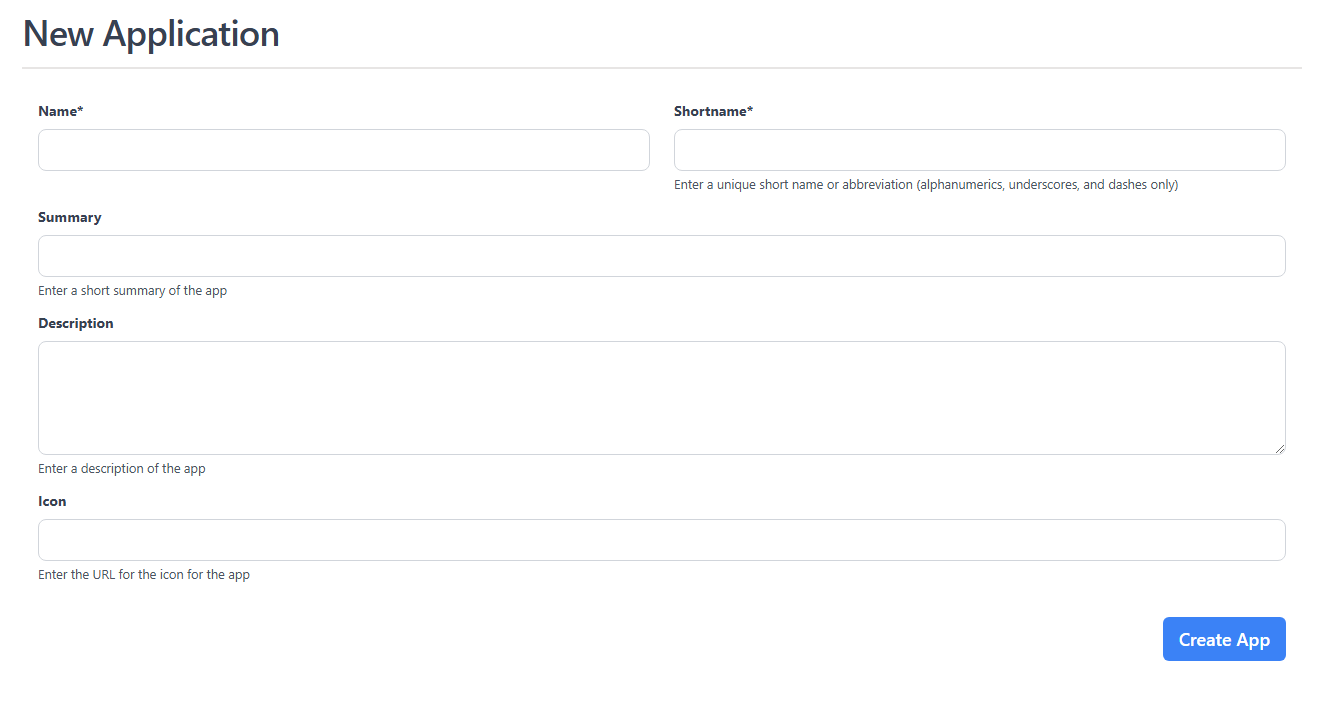
How to add a logo or icon
Application logos can be added in two ways:
- External URL - Enter a URL to an image hosted elsewhere
- Upload a file - Upload an image file directly to AppsFolio (PNG, JPEG, GIF, SVG, or WebP up to 5MB)
Uploaded logos are stored securely and served through AppsFolio with proper access controls.
Info
Applications added from the Resource Library will include the name, shortname, summary, description, and logo automatically.
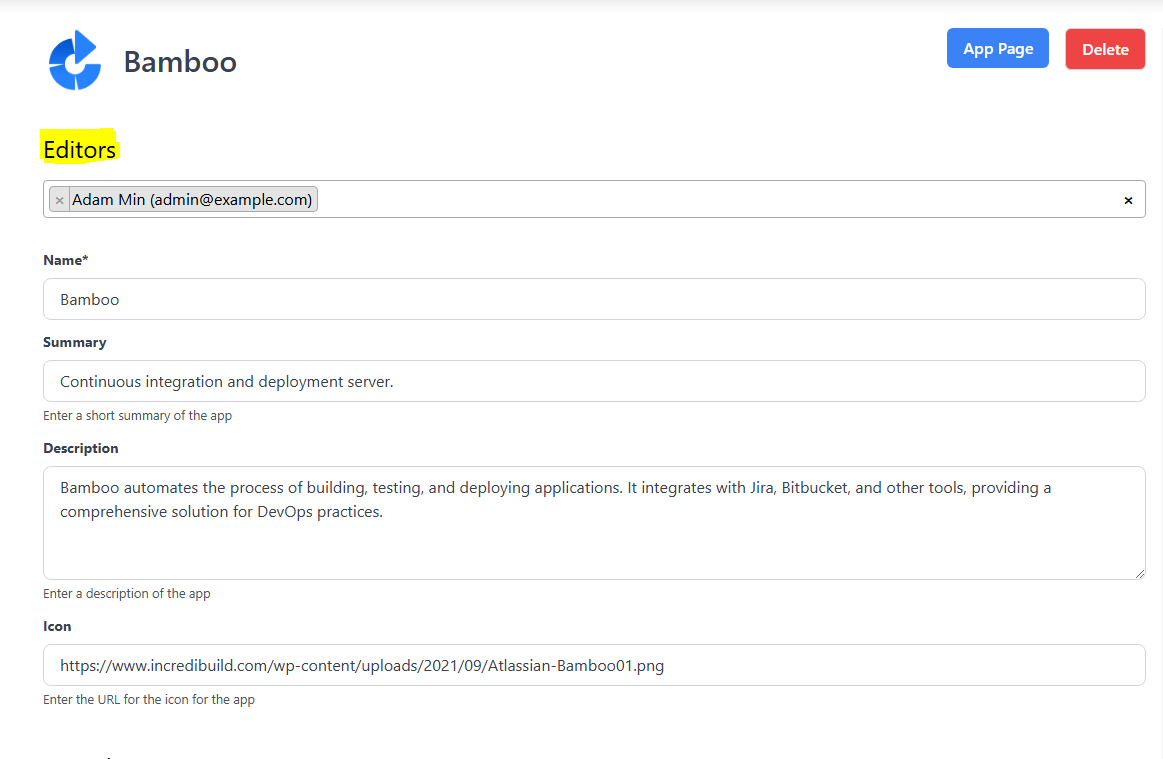
How to add editors to an application
-
The owner of an application can also invite other users to be editors
- Any member of the org can be an editor as long as they are invited by the app owner or another editor
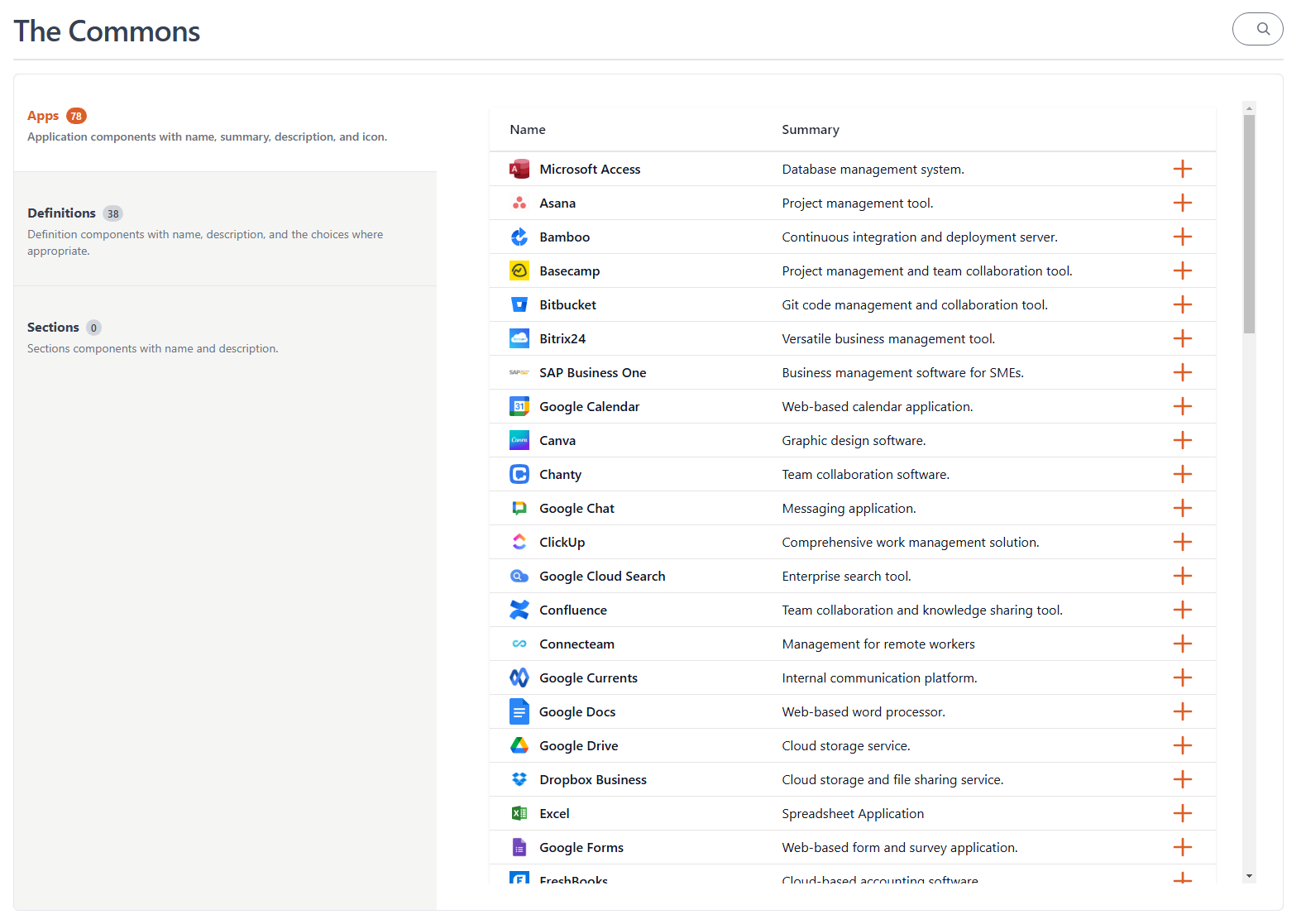
How to add applications from the Resource Library
-
The org owner can add applications through the AppsFolio Resource Library during org setup
-
This is the best way to add applications in bulk and also add "families" of applications - the entire office suite
-
App Managers and Org Admins invited through the setup will also be able to access the apps section of the Resource Library when they first join
-
How to bulk import applications
For organizations that need to add many applications at once, AppsFolio offers a bulk import feature.
Import Apps
The Import Apps button on the Applications page allows you to import applications from a CSV file with owner/editor assignment.
- Upload a CSV file with application details and owner/editor emails
- Assign owners and editors during import
- Automatically send invitations to users who aren't yet members
- Preview and review before importing
How to find applications: search and filters
The Applications page provides two ways to narrow what's visible: a search box at the top of the page and a facet panel on the left.
Search
Type into the search box to match applications by name or description. The search uses both full-text matching and a fuzzy "looks-like" match on the application name, so a slight typo still finds the app.
Facet filters
The left-hand panel lists each Content Type the org has configured as a filter (Status, Criticality, Categories, etc.). Each one is a collapsible section with checkboxes for its values.
How they combine:
- Within one facet — pick more than one value and the result is the union. Picking
Status: ActiveplusStatus: Planningshows apps that are Active or Planning. - Between facets — selections in different facets multiply.
Status: ActiveplusCriticality: Very Highshows apps that are Active and Very High. - Search and facets together — what you type in the search box narrows the candidate list first; facets narrow it further. You can search for "AutoCAD" and still uncheck statuses you don't care about.
The pills shown above the facet list reflect every active selection, including any inherited from your admin's defaults (see Default choices). Click the × on a pill to remove that single value, or click Reset Filters to clear them all.
The "(missing)" bucket
Whenever some applications in your org don't have a value set for a filterable Content Type, that facet shows an extra (missing) checkbox at the top of its list.
- Selecting
(missing)includes the apps with no value for that Content Type, in addition to any real values you have selected. - It's the only way to see untagged apps once you've narrowed by a particular facet — selecting
Status: Activealone hides apps with no Status; selectingStatus: Activeplus(missing)shows both Active apps and apps with no Status set yet. - The
(missing)count next to the checkbox tells you how many untagged apps would appear if you ticked it.
If your admin has marked a value as default, the (missing) checkbox is also pre-selected on first load — so brand-new apps without metadata stay visible until someone deliberately hides them.
Counts shown next to each value
The number in parentheses next to each facet value (and next to (missing)) is contextual: it reflects how many apps would match if you also ticked that value, given the rest of your current filter and search. So the counts in the Status facet update as you change Criticality and vice-versa, helping you see which choices will narrow further versus which will return zero.
Saved Views
If your selection of facets and apps becomes one you want to come back to, save it as a View from the Applications page. Saved views replay the same combination of explicit apps and dynamic facet selections. If you want untagged apps to remain in a saved view, make sure (missing) is ticked on the relevant facets before saving.